Quick Start
Water on screen, floating objects, and gameplay height in a few steps.
The fastest way to get water on screen is to let Tidal create everything for you. The steps below take you from an empty scene to a floating, physics-driven boat.
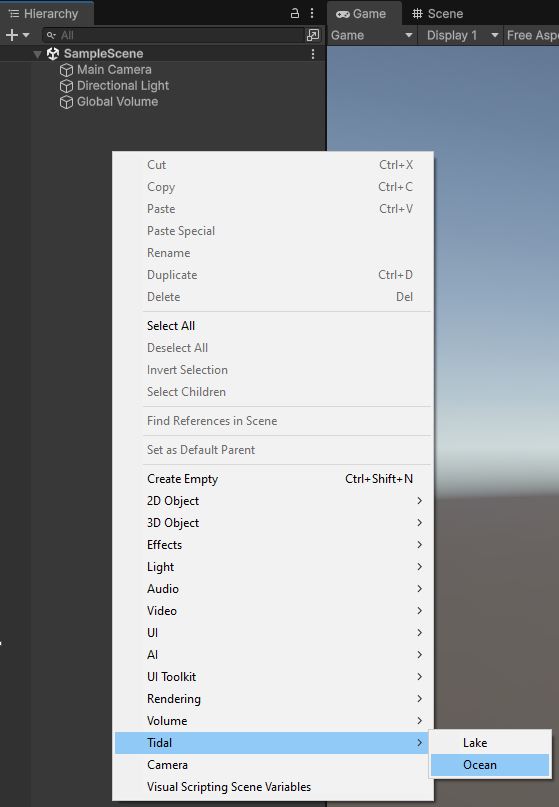
1. Create water
From the top menu (or right-click in the Hierarchy) choose:
GameObject → Tidal 2 → OceanInfinite, viewer-centred ocean.
GameObject → Tidal 2 → LakeBounded body that fills an exact rectangle (Body Size).
Either menu item creates a GameObject with a TidalBody (and its subsystems), a
TidalCompute sibling already wired into the body's Core settings,
a default water profile, and a surface material - a fully working body with sensible defaults.
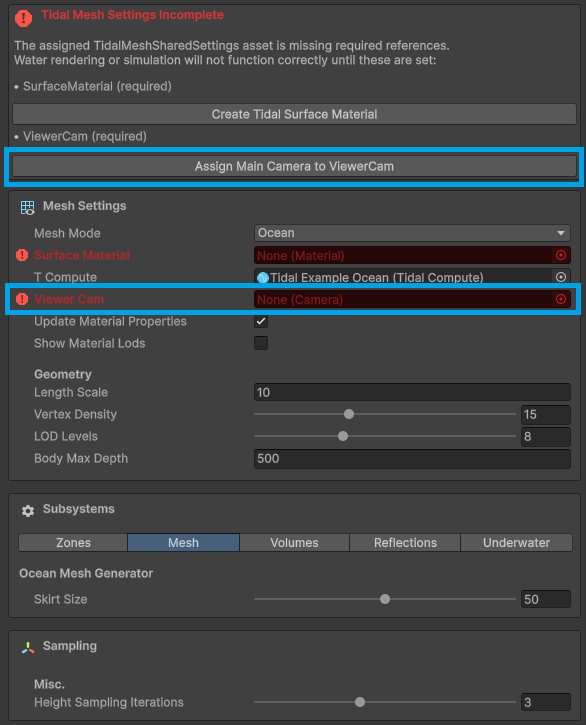
2. Assign the Viewer Cam
In the body's Core section, assign the Viewer Cam - the camera that mesh LODs and interaction clipmaps follow. You can leave it empty, in which case the main camera is used.
3. Press Play - or don't
You can enter Play mode to see the simulation, but you don't have to. Run In Editor
(body → Misc) is on by default and simulates the water directly in edit mode,
driving the editor player loop so other [ExecuteAlways] scripts tick too.
4. Read water height for gameplay
Sample the surface anywhere from C# with a fast, wake-inclusive CPU query:
float h = body.GetWaterHeight(worldPos);This includes FFT waves, wake, zones, and volume effects. See Water Queries & API for the full query set and the important sentinel check on the return value.
5. Make something float
Add a TidalBuoyancy component to any Rigidbody, then assign 3-4 Float
Points - empty child transforms positioned around the hull. That's all buoyancy needs; it
handles per-point uplift, drag switching, current push, and wave slide on its own. For engine and
steering input, see the demo BoatController in the Demo/ folder.
How the transform maps to water
The TidalBody transform behaves in a few specific ways:
- Water level is the TidalBody transform's Y position - move the body up or down to set the surface height.
- Rotation is locked to identity: the simulation and mesh are world-axis aligned, so the editor reverts any rotation.
- Scale folds into Body Size: dragging the normal scale gizmo on a bounded body
resizes its Body Size (XZ), and the transform scale always returns to
(1, 1, 1).